Your questions, answered

Mobile FAQs

Who should download or have access to this application?

This version of the application is geared towards “Administration” and “Responders”. This application is not currently developed to be available for students, parents, or non-responder staff members. If you have questions or concerns about whether you should be marked as a responder, please contact your local administrator. For more information about the application as a whole, please contact support@centegix.com.

How can I verify the locations I have access to?

Once logged into the application, you can click on the 3-line icon at the top of the screen. From there, select “My Locations”, and your interface will show a list of locations to which you have access. If you have questions or concerns about whether you should be marked as a responder, please contact your local administrator.

How can I see which Alert Types I am able to access?

Once logged into the application, you can click on the 3-line icon at the top of the screen. From there, select “My Alert Types”, and your interface will show a list of Alert Types to which you have access. If you have questions or concerns about whether you should be able to open an alert, please contact your local administrator.

How do I close an Alert?

When an alert is open, you can see more information about it by simply clicking on the alert itself. This will take you to the map view with the alerts for that location listed below. Next to each alert you will see a “Close” button. Selecting this button will prompt you to select a “Close Reason”, which is required to close an alert.

Can I replay the tutorial if needed?

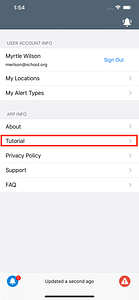
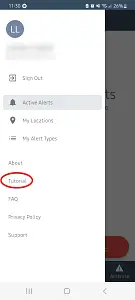
The tutorial will begin the first time you launch the app. After that, you can revisit the tutorial as often as you’d like by tapping the menu button and selecting ‘Tutorial’.

iOS:
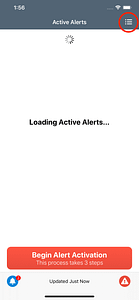
Mobile app screen with a loading spinner under the title 'Active Alerts' and the message 'Loading Active Alerts…', showing a grid menu icon in the top right corner and a red button labeled 'Begin Alert Activation' at the bottom.
Mobile app screen showing user account info with the name Myrtle Wilson and email, options for My Locations and My Alert Types, and app info menu with About, Tutorial highlighted in red, Privacy Policy, Support, and FAQ links.

‍

‍

‍

‍

‍

‍

‍

‍

‍Android:

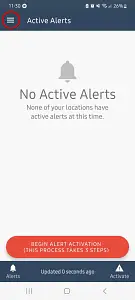
Mobile app screen displaying 'No Active Alerts' message with a bell icon and text indicating no locations have active alerts, a red button labeled 'BEGIN ALERT ACTIVATION! (THIS PROCESS TAKES 5 STEPS)', and navigation icons for Alerts, Updated status, and Activate at the bottom.
Mobile app menu showing options including Sign Out, Active Alerts (highlighted), My Locations, My Alert Types, and a section titled About with links to Tutorial, FAQ, Privacy Policy, and Support.

‍

Can I disable/enable Critical Alerts on iOS?

You will be prompted to allow Critical Alerts when the app is first launched. After that, Critical Alert settings can be modified by browsing to Settings -> Notifications -> CrisisAlert.
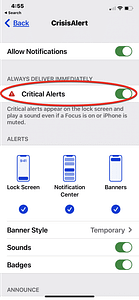
iPhone screen showing Crisis Alert notification settings with Critical Alerts enabled, including a note that critical alerts appear on the lock screen and play a sound even if Focus is on or the iPhone is muted.
‍

‍

Does Android have a Critical Alerts feature?

Android does not have a Critical Alerts feature. However, users can modify their settings to bypass Do Not Disturb mode as shown below.

‍
1. Browse to the CrisisAlert app settings by long pressing the CrisisAlert app icon and choosing ‘App info’ or by using the Android Settings menu (Settings -> Apps & Notifications -> CrisisAlert).
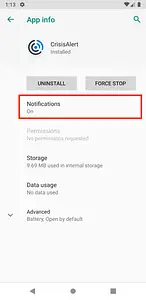
Smartphone screen showing CrisisAlert app info with options to uninstall, force stop, and notifications set to Off, plus storage and data usage details.

‍
2. Tap ‘Notifications’ – the box next to ‘Critical Alerts’ should be checked
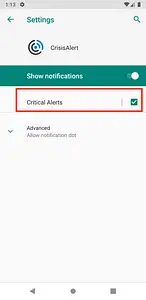
Mobile phone settings screen for CrisisAlert app showing the notification options, with 'Critical Alerts' enabled.

‍
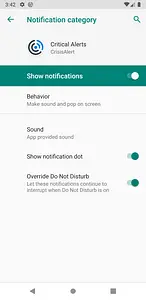
3. Tap ‘Critical Alerts’

Smartphone screen showing notification settings for Critical Alerts, with toggles for showing notifications, sound enabled, showing notification dot, and override Do Not Disturb.

Enable ‘Override Do Not Disturb’ in the ‘Advanced’ section.
Other settings that can help ensure you receive notifications from CrisisAlert are:

  • ‘Behavior’ should be set to ‘Make sound and pop on screen’
  • ‘Alerting’ should be selected (default)

These settings do not override your sound settings; if you have your device set to ‘Silent’ mode, the notification will be delivered, but you will not hear the sound.